Home tab overview
The Home tab is the project dashboard. It is where you load and save configurations, edit project metadata, see what your config contains at a glance, and launch the healthcheck.
Follow along
Screenshots on this page were taken with the Comprehensive demo config loaded. Load it from Home → Load → Examples → Comprehensive demo to reproduce them.
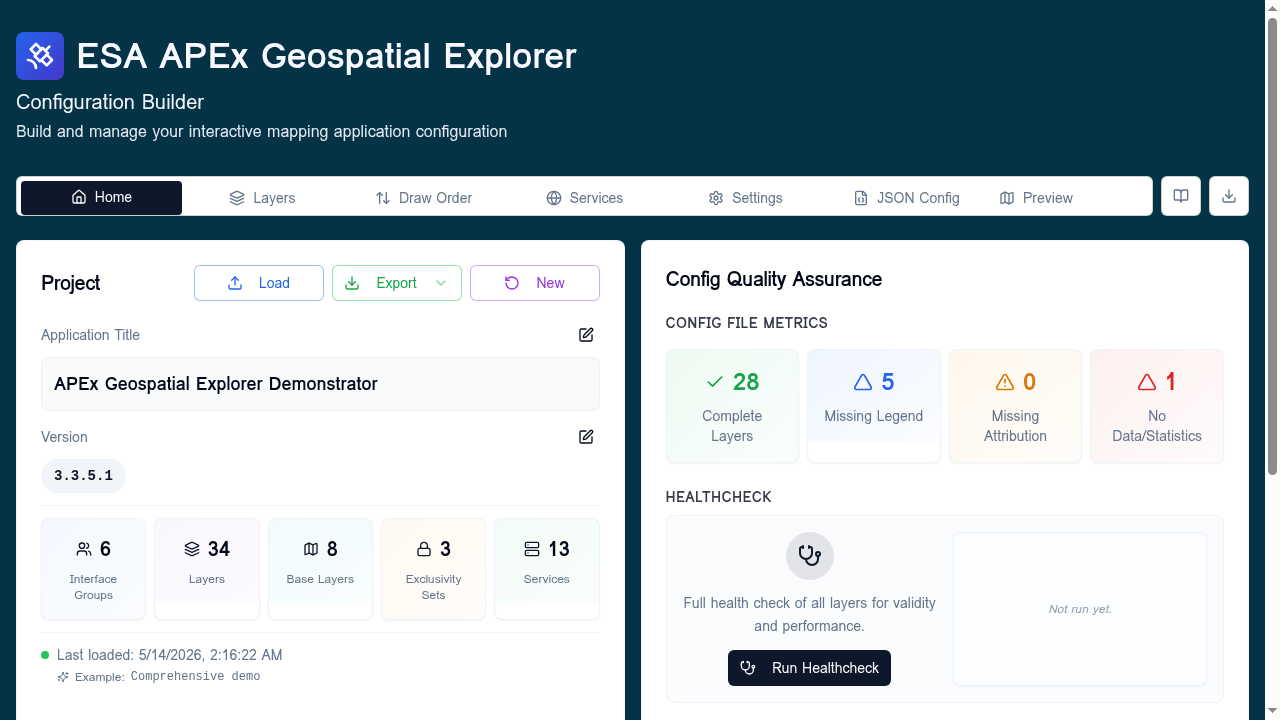
Layout
The tab is split into two equal cards.
| Card | Purpose |
|---|---|
| Project (left) | Load / Export / New, application title, version, and per-config statistics. |
| Config Quality Assurance (right) | Per-layer QA metrics and the entry point for Run Healthcheck. |
Project card
Load, Export, New
Three buttons sit at the top right of the Project card.
- Load opens the Load Configuration dialog. From here you can upload a local JSON file, pull from a URL, fetch a config from a GitHub repository, or pick one of the bundled examples.
- Export is a dropdown:
- Quick Export (Default) — downloads the current config immediately as
<prefix>_YYYYMMDD_HHMM.json. The<prefix>portion comes from the Export filename prefix field on the Settings tab; see Loading and saving → Filename convention for details. - Export with Options… — opens the Export options dialog where you can control JSON ordering and other formatting choices.
- Quick Export (Default) — downloads the current config immediately as
- New clears the workspace back to an empty config. You will be warned if there are unsaved changes.
Application title and version
Both fields are inline-editable: click the pencil icon, edit, then Save.
- Application Title — the human-readable name shown in the deployed APEx Geospatial Explorer header.
- Version — the config document version (free-form, but semantic
versioning like
1.2.0is recommended).
Config statistics
A row of five compact counters summarises the config:
| Stat | What it counts |
|---|---|
| Interface Groups | Top-level groupings declared in Settings. |
| Layers | Data-source layers, excluding base layers. |
| Base Layers | Background basemap layers. |
| Exclusivity Sets | Mutual-exclusion groups defined in Settings. |
| Services | Endpoints declared on the Services tab. |
Status info
When present, three status lines appear under the statistics:
- Last loaded — timestamp plus the source (upload, example, GitHub, URL).
- Last exported — when you most recently exported JSON from this session.
- Loading configuration… — shown while a load is in flight.
Config Quality Assurance card
Config file metrics
Four QA counters give you a one-glance view of issues that won't cause a healthcheck failure but are worth fixing before you ship a config:
| Metric | Meaning | Click behaviour |
|---|---|---|
| Complete Layers | Layers with everything filled in correctly. | — |
| Missing Legend | Layers without a legend definition. | Opens the list of affected layers. |
| Missing Attribution | Layers with no attribution string. | Opens the attribution dialog so you can fix them. |
| No Data/Statistics | Layers missing a data URL or, where required, a statistics URL. |
Opens the list so you can jump straight to each layer. |
The counts update live as you edit the config.
Healthcheck
The bottom panel is the entry point to the Run Healthcheck tool, which probes every URL in your config and reports per-layer Data Access and Performance scores.
- Click Run Healthcheck to start. On the first run it opens the Complete Layers dialog and runs automatically.
- After a run, the right side of the panel shows a results summary (counts of pass / partial / fail for Data Access and good / average / poor for Performance). Click the summary to re-open the detailed dialog.
- The button label changes to Re-run Healthcheck once results exist.
For a full walk-through with screenshots see Run Healthcheck.
When to come back to Home
- After loading a new config — confirm the title, version, and statistics match what you expected.
- After any meaningful edit — re-run the healthcheck.
- Before exporting — clear the four QA counters where you can, then re-run the healthcheck so the consumer of your config sees a clean baseline.