Footer links
The Footer Links editor manages the links shown in the deployed APEx Geospatial Explorer's footer bar. Open it from the Settings tab by clicking Edit Footer Links under the Footer Links preview.
The dialog is a two-page modal: a sortable list of existing links, and an add/edit form for a single link.
List page
The list shows each configured link with its label, a type-aware icon, and controls to reorder (▲▼), edit (pencil), or delete (trash). Links appear in the deployed footer in the order shown here.
Click + Add Footer Link to open the edit form for a new link, or click the pencil icon on an existing row to edit it.
Click Done to save changes back to the config, or Cancel to discard them.
Add / edit form
Each link has two flavours selected via the Type dropdown:
Standard Link
A regular https:// URL, opened in a new tab in the deployed Explorer.
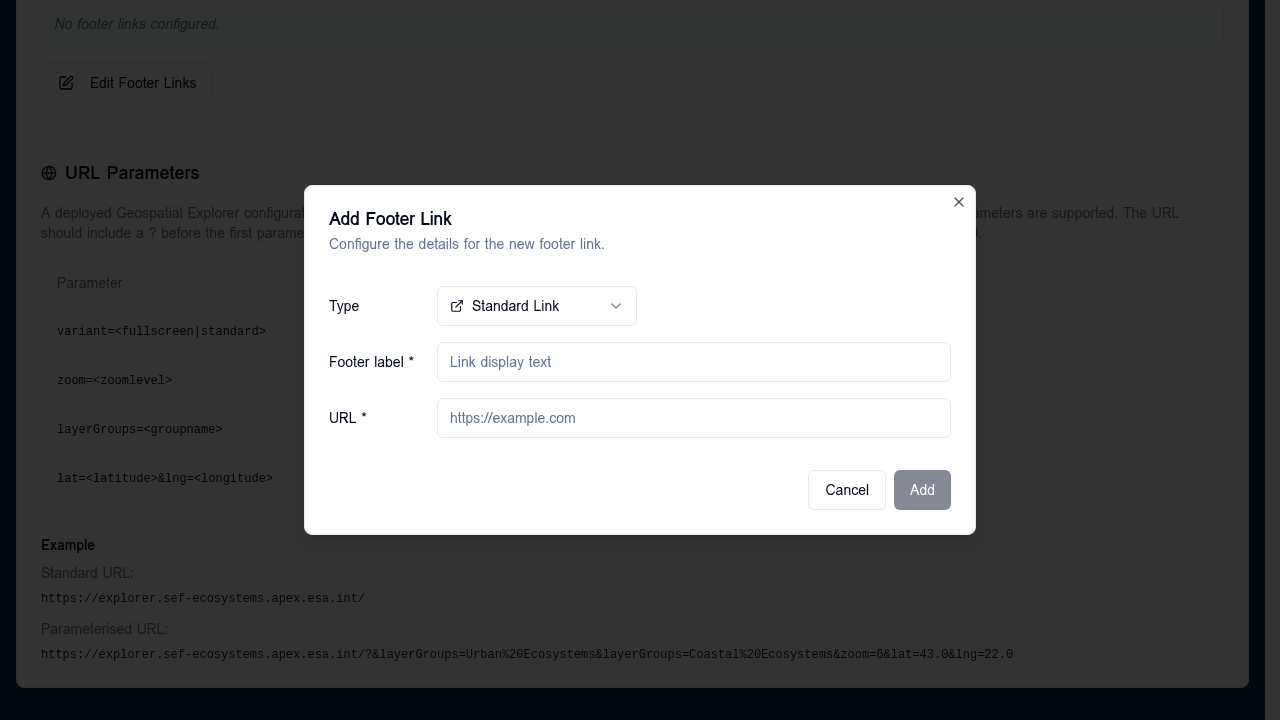
| Field | Required | Notes |
|---|---|---|
| Footer label | Yes | Display text shown in the footer. |
| URL | Yes | Absolute https:// URL. |
Email (mailto)
An email link that opens the user's email client with optional pre-filled
fields. The form fields are bidirectionally parsed from / serialised to a
mailto: URL.
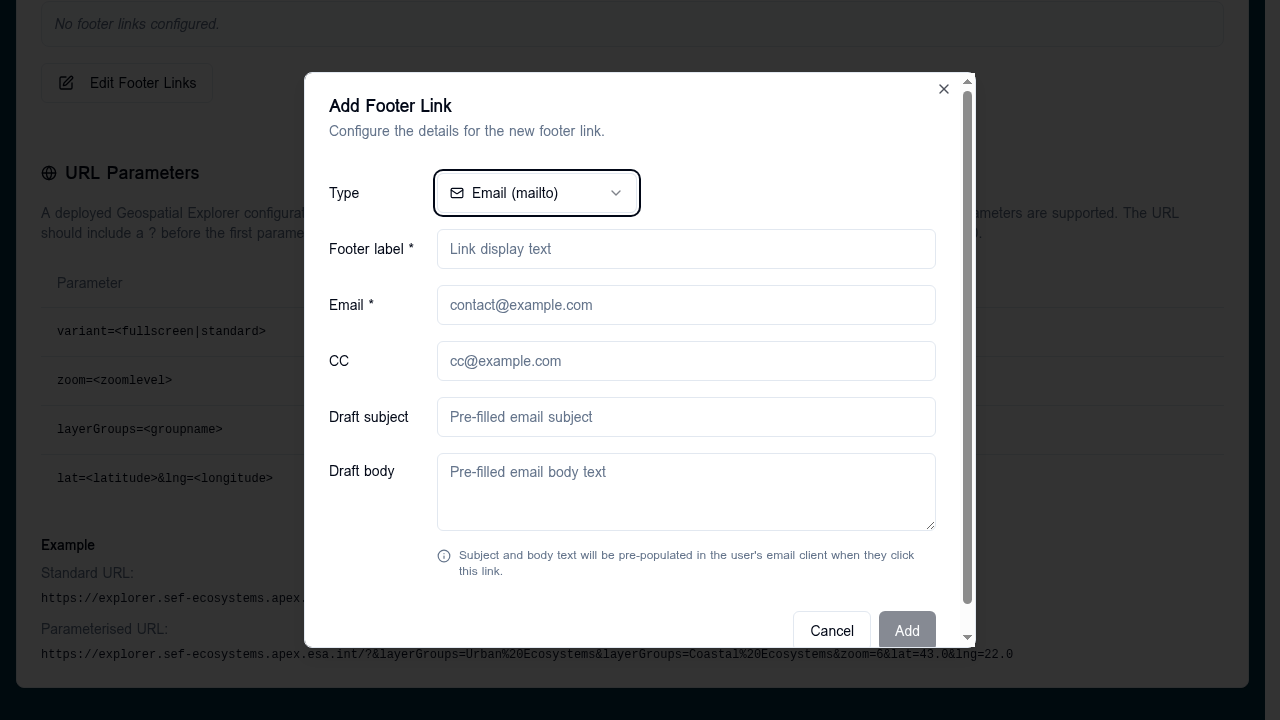
| Field | Required | Maps to |
|---|---|---|
| Footer label | Yes | Link display text. |
| Yes | mailto:<email> recipient. |
|
| CC | No | ?cc= query parameter. |
| Draft subject | No | ?subject= query parameter. |
| Draft body | No | ?body= query parameter (multi-line). |
The composed URL looks like
mailto:hello@example.com?cc=team@example.com&subject=Feedback&body=Hi%20there.
The Add / Save button is disabled until the required fields for the selected type are filled.
Schema
Footer links are stored under layout.footer as an ordered array of
FooterLink objects (each { title, url }). Mailto links are stored as
fully-formed mailto: URLs:
{
  "layout": {
    "footer": [
      { "title": "Documentation", "url": "https://docs.example.com" },
      { "title": "Contact us", "url": "mailto:hello@example.com?subject=Feedback" }
    ]
  }
}
Live preview on the Settings tab
Above the Edit Footer Links button, the Settings tab shows each
configured link as a badge with a mail (✉) or external-link (↗) icon
depending on the URL scheme. Empty configurations show
"No footer links configured.".