Layout
The Layout subsection of the Settings tab controls the
top-level chrome of the deployed APEx Geospatial Explorer — the design
variant plus any variant-specific parameters. It is persisted on the
config's layout.design field.
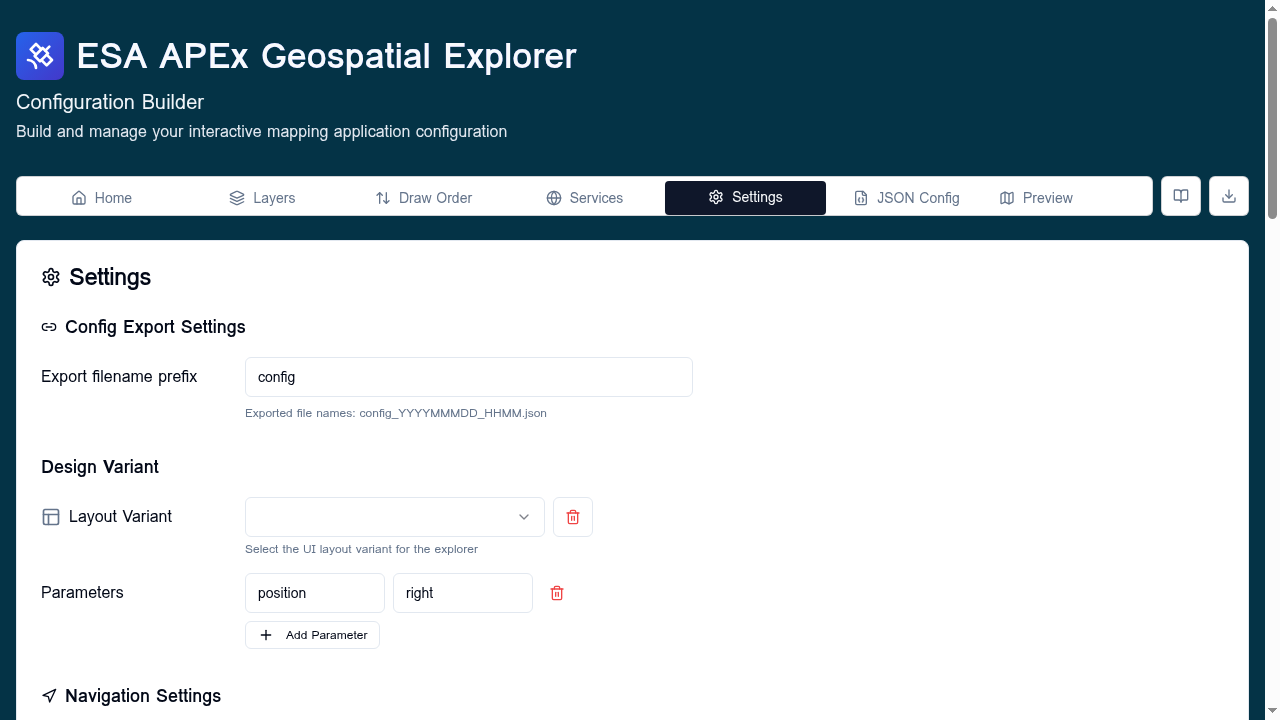
Layout Variant
Pick one of the predefined UI variants from the dropdown:
| Variant | Description |
|---|---|
fullscreen |
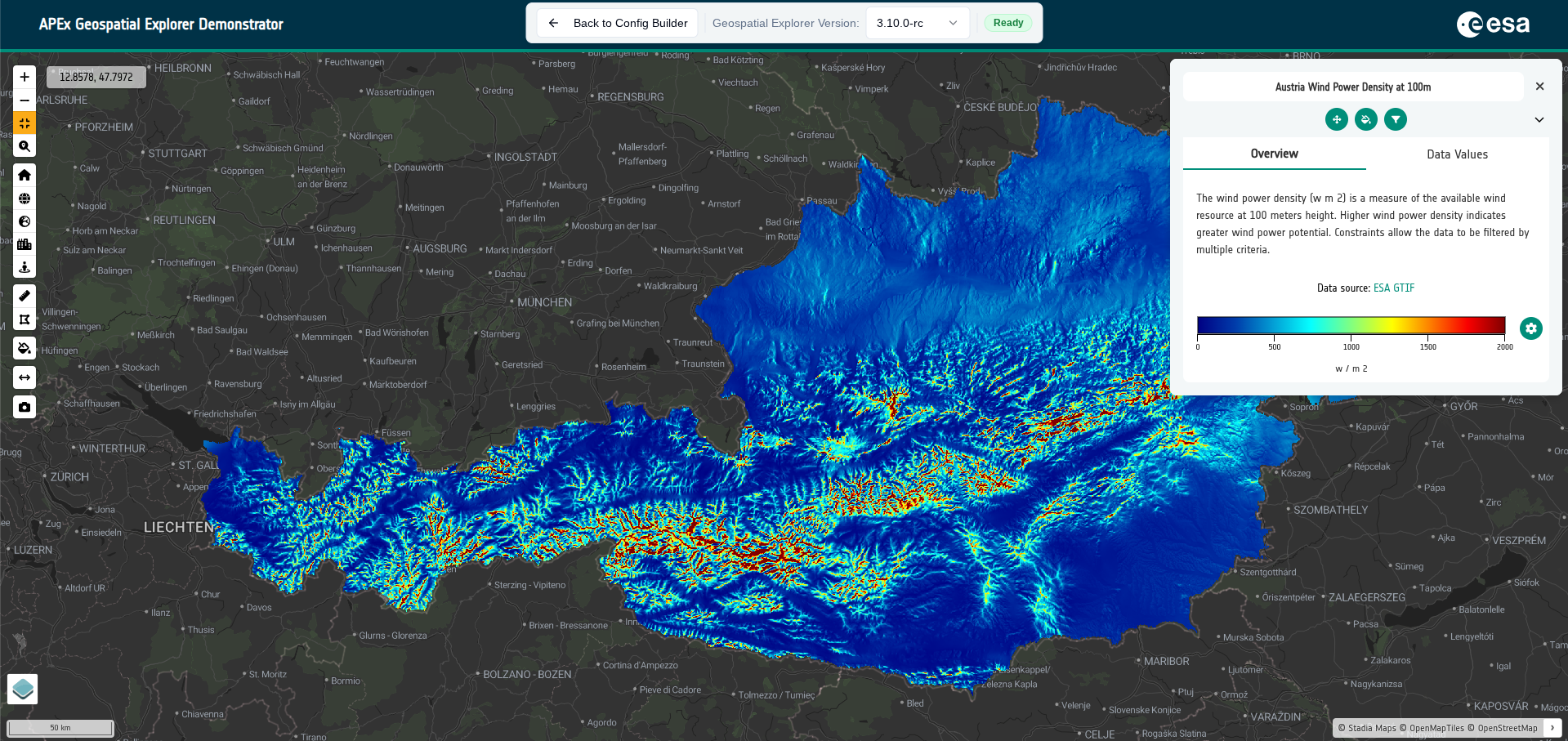
Map fills the viewport; layer panel and controls float over the map. |
sidebar |
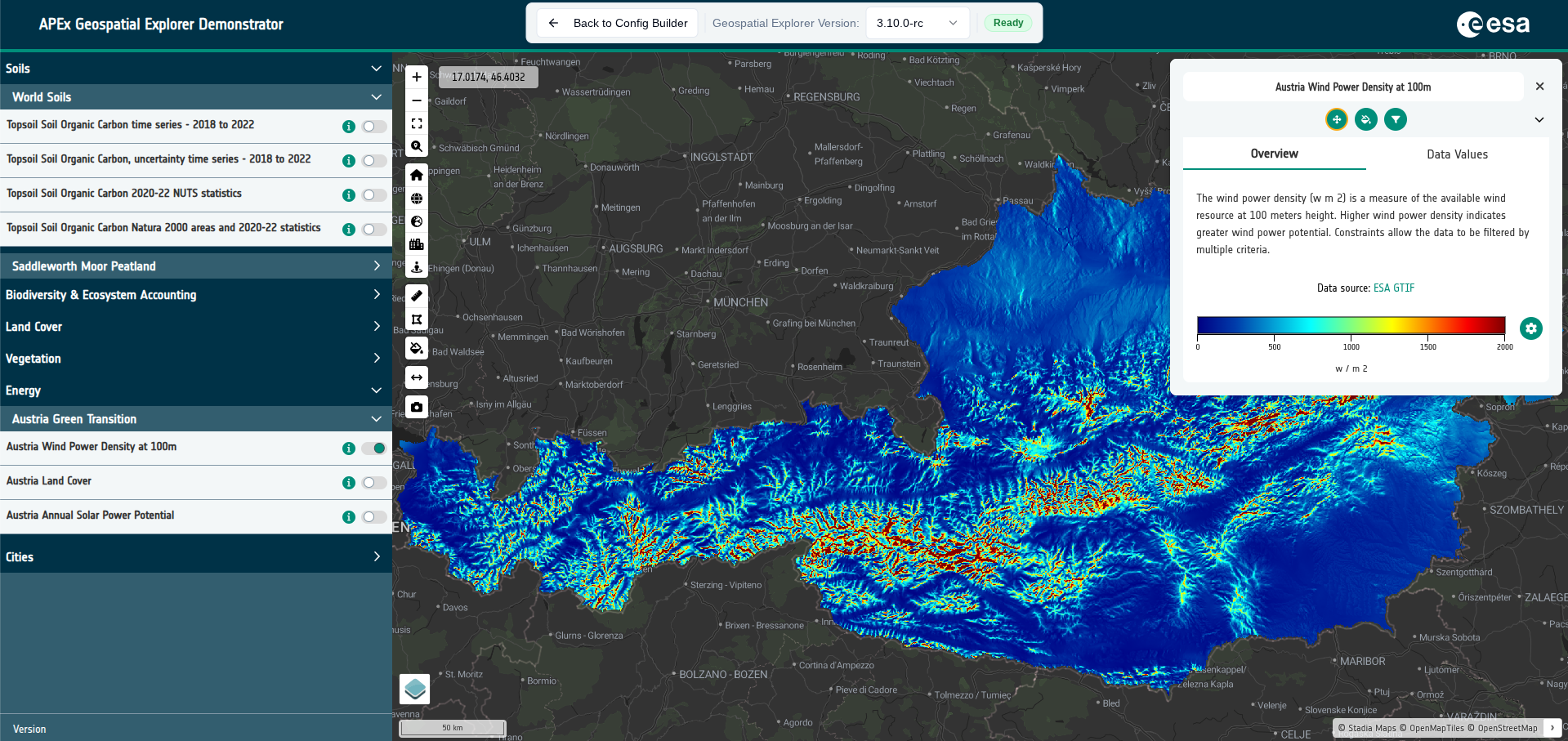
Map is paired with a persistent side panel for layers, legends, and information. |
Sidebar (standard) mode — layer panel docked to the side of the map:
Fullscreen mode — map fills the viewport with floating controls:
The selected value is written to layout.design.variant.
Click the trash icon next to the dropdown to clear the design configuration entirely. When unset, the deployed Explorer falls back to its built-in default variant.
Parameters
Variants accept an optional bag of key–value parameters that fine-tune
their behaviour. Each row maps to a property under
layout.design.parameters.
Use + Add Parameter to add a new key, edit the key/value inline, and click the trash icon to remove it. Parameters are typed as strings in the UI; numeric or boolean values that a variant expects can be entered as their string representation.
URL override
End users can override the variant at load time via the variant URL
parameter — for example ?variant=fullscreen. See
URL parameters for the full list.
Schema
{
  "layout": {
    "design": {
      "variant": "sidebar",
      "parameters": {}
    }
  }
}
Both parameters and the entire design object are optional. The
JSON config tab is the easiest place to inspect or paste
in a design block.