Adding services
This page covers the Add Service dialog on the Services tab.
Open the dialog
On the Services tab, click Add Service in the top right. The dialog opens with Service Type preselected to WMS.
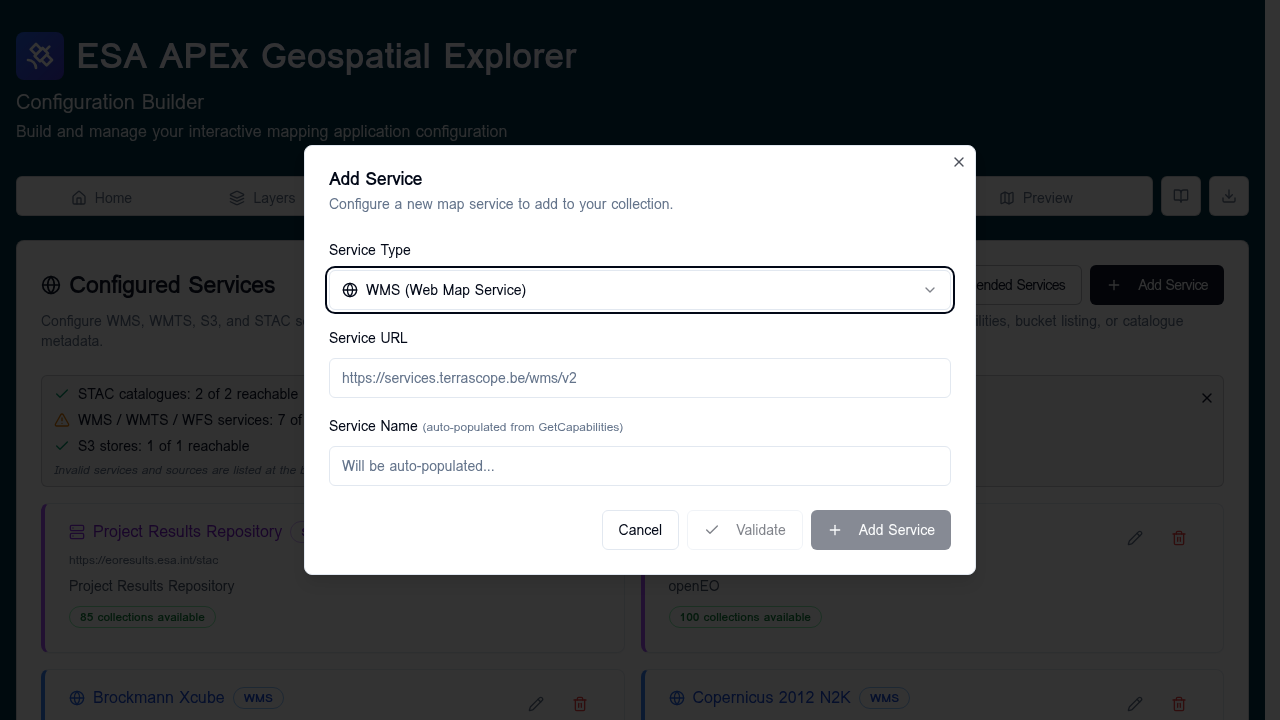
Step 1 — Choose the service type
The Service Type dropdown offers:
| Option | Use for |
|---|---|
| WMS | Web Map Service endpoints. |
| WMTS | Web Map Tile Service endpoints. |
| S3 | An S3 bucket containing COG, GeoJSON, FlatGeoBuf, or CSV files. |
| STAC | A SpatioTemporal Asset Catalog. |
| JSON or XML File Upload (beta) | A one-off upload of a saved capabilities or catalogue file. |
For an existing service the type is locked — to change type, delete and re-add.
Step 2 — Provide the URL
For everything except JSON or XML File Upload:
- Service URL — the endpoint address. The placeholder shows the expected shape for the selected type (for example a base WMS URL, an S3 bucket root, or a STAC catalogue root).
- Service Name — a label you will see in dropdowns when building layers.
- For WMS, WMTS, WFS, and STAC the name is auto-populated
from
GetCapabilitiesor catalogue metadata. You can override it. - For S3 you set it yourself (for example,
ESA APEx S3 Bucket).
- For WMS, WMTS, WFS, and STAC the name is auto-populated
from
For JSON or XML File Upload, instead of a URL you select a local file containing an S3 listing, STAC catalogue, or service capabilities document.
Step 3 — Validation
The dialog validates as you type:
- Validating… — the builder is reaching the endpoint.
- Reachable (green) — the endpoint responded correctly. A short message describes what was found (for example, the catalogue title or the number of layers reported).
- Unreachable (red) — the endpoint failed. The error message is shown
inline. Common causes: typo in the URL, missing
https://, CORS block, or the service is offline.
You can save an unreachable service if you know it will come up later, but it will fail the healthcheck until it does.
Step 4 — Save
Click Add Service to save. The dialog closes and the new service appears in the Configured Services list with its validation status.
Editing or removing a service
In the services list, each row has:
- Edit — re-opens the dialog with name/URL editable. Service type is locked.
- Delete — removes the service. Layers that referenced it will need to be re-pointed at a different service.
Type-specific tips
WMS / WMTS / WFS
Point at the base endpoint (the one that responds to ?service=...&request=GetCapabilities).
Do not include the layer name or query string — those are picked per-layer.
What gets saved: the config stores the service URL plus the chosen layer name. Editing the service URL re-points every layer that uses it.
STAC
Point at the catalogue root (the URL that returns the root Catalog
or Collection JSON). The builder will read the title and use it as the
service name.
What gets saved: the STAC service is used to browse the catalogue in the builder. When you add an item, the resolved asset URL (COG, GeoJSON, FlatGeoBuf, CSV) is written into the layer. The STAC service entry itself is not required at runtime — you can delete it after the layers are configured without breaking them.
Coming soon
Future releases will allow a STAC collection to be referenced directly as a live data source — for example, to feed the items in a collection into the temporal control as a time series.
S3
Point at the bucket root URL. Both AWS-flavour (Amazon S3, OBS) and S3-compatible stores like MinIO are supported. Once added, you can browse the bucket from the S3 browser when adding layers.
What gets saved: like STAC, the S3 service is a browsing aid. When you pick a file, its resolved URL is written into the layer; the S3 service entry can be removed later without affecting those layers.
JSON or XML upload
Use this when an endpoint is firewalled but you have a saved capabilities
document, or when you want to seed a config offline. Upload .json or
.xml. The builder parses it and creates the service entry.
After adding a service
- The service is now selectable wherever a service of that type is needed on the Layers tab.
- Run the healthcheck to confirm everything still passes.