S3 browser
A folder-style picker for any S3 service registered on the Services tab. Works against AWS S3, Huawei OBS, MinIO, and other S3-compatible stores.
What ends up in your config
The S3 bucket is a browsing aid only. When you select a file, the config stores its resolved direct URL — not a reference to the bucket. You can delete the S3 service entry afterwards without breaking layers built from it.
Open the browser
In a layer card's data source form, choose From Service and select your S3 service. The browser opens at the bucket root.
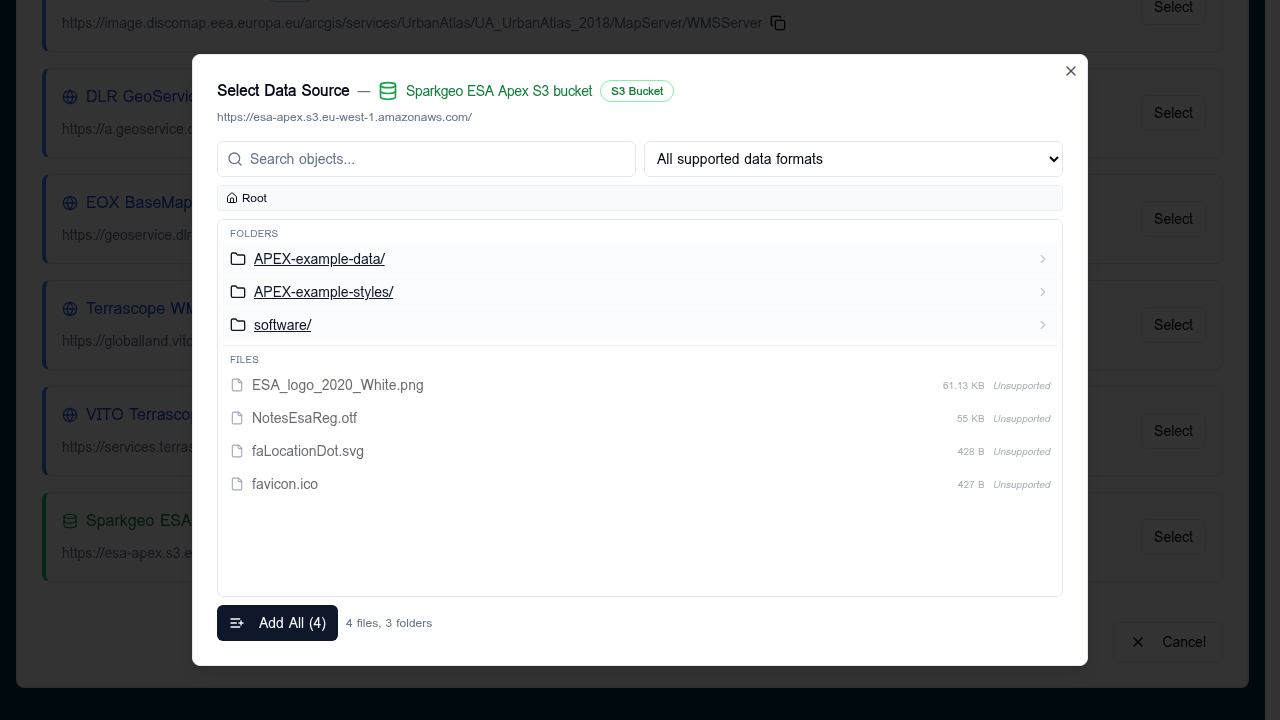
The header shows:
- The service name and bucket URL.
- A Search objects field (filters the current folder).
- A Format filter dropdown — defaults to All supported data formats, filter by COG, GeoJSON, FlatGeoBuf, CSV, etc.
- A breadcrumb showing the current path.
Navigate
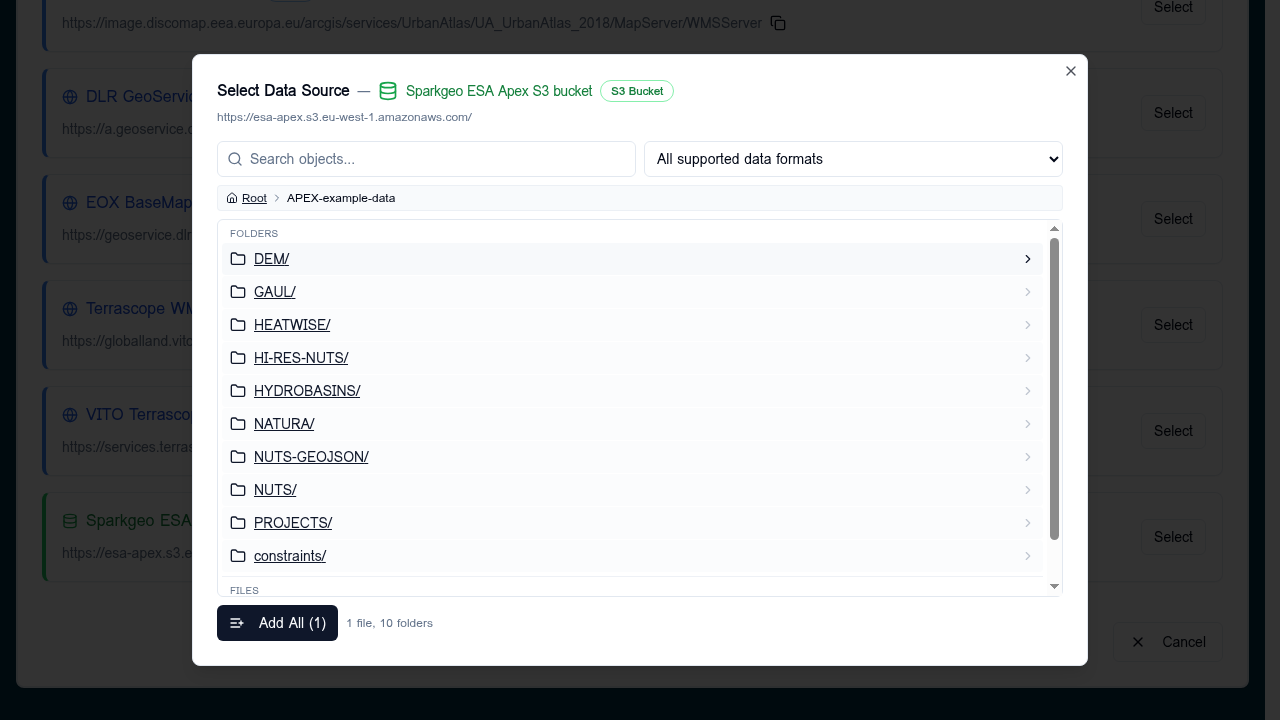
- Click any folder row to drill in. The breadcrumb updates so you can jump back any number of levels.
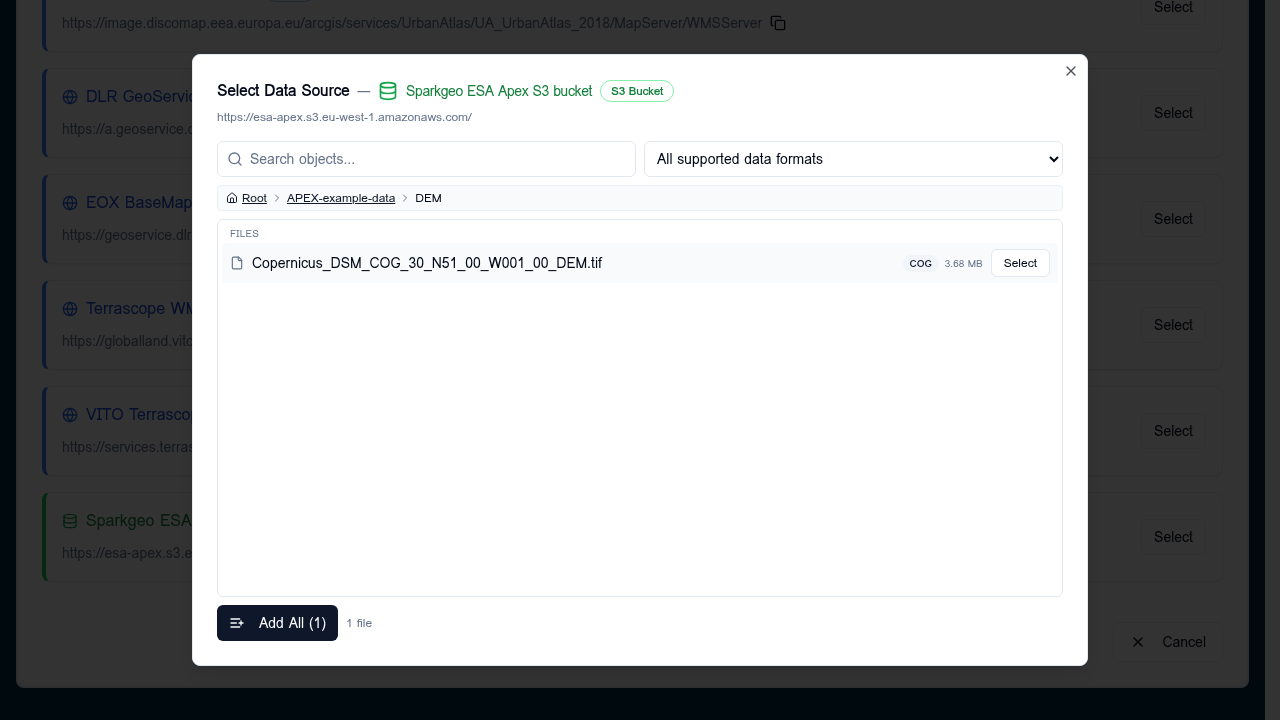
- Files are listed beneath folders. Each file shows its detected format (or Unsupported), size, and a per-row Select button.
Select a file
Click Select on a file row. The dialog closes and the data source form is populated with the file's URL and detected format.
Bulk add
The Add All (n) button at the bottom adds every supported file in the current view (after search and format filtering) as separate data sources. Use this for time-series of many COGs in the same folder, or when seeding a layer from a folder of FlatGeoBuf shards.
Supported formats
Files are auto-detected by extension:
| Extension | Format |
|---|---|
.tif, .tiff |
COG |
.geojson, .json |
GeoJSON |
.fgb |
FlatGeoBuf |
.csv |
CSV |
| anything else | Unsupported (greyed out, not selectable) |
Tips
- Bucket listings need either public ACL or a CORS-friendly listing endpoint. If the browser shows nothing, check the service URL in the Services tab and the bucket's CORS policy.
- For signed URLs (presigned S3, MinIO temp creds), the browser strips the query parameters when storing the base URL — the deployed Explorer signs requests on its own.