STAC browser
A three-level picker over any STAC catalogue or API registered on the Services tab. Walks you from Catalogue → Collection → Item → Asset.
What ends up in your config
The STAC catalogue is a browsing aid only. When you select an asset, the config stores its resolved direct URL (COG, GeoJSON, FlatGeoBuf, CSV) — not a reference to the catalogue. You can delete the STAC service entry afterwards without breaking layers built from it.
Open the browser
In a layer card's data source form, pick From Service and select your STAC service. The browser opens at the catalogue's root collections list.
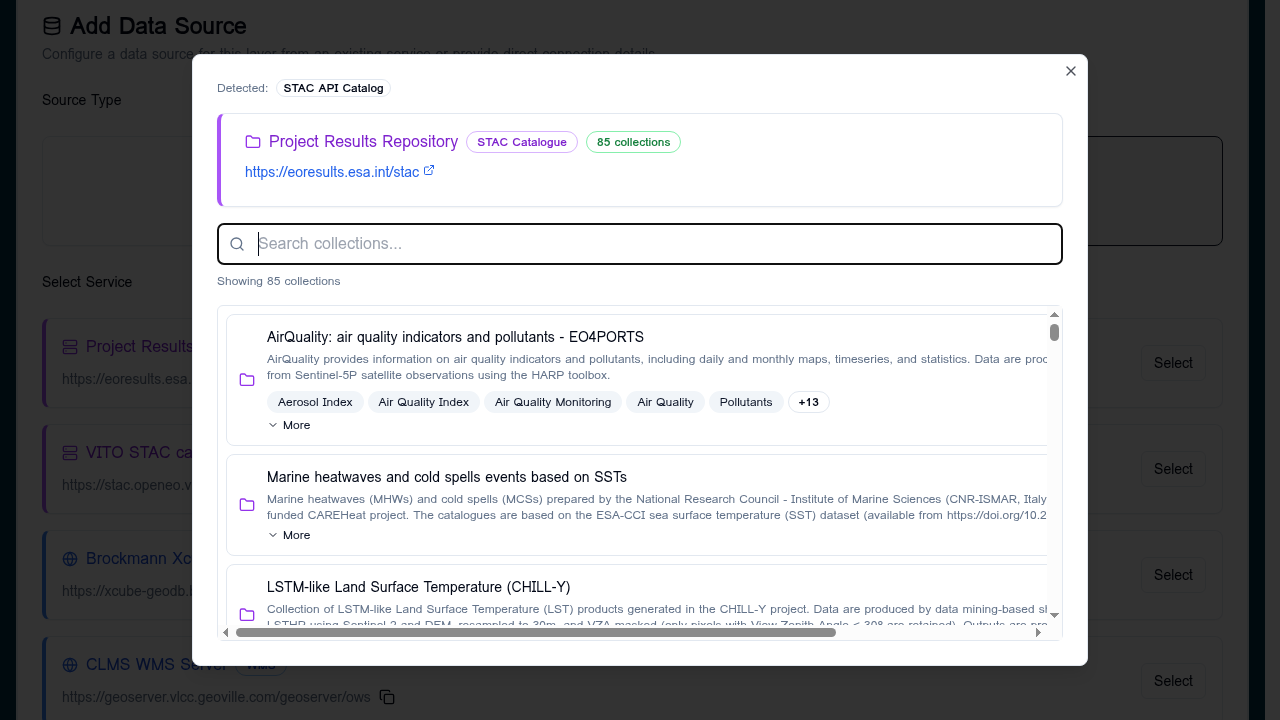
The header shows:
- The catalogue name and a STAC type badge (
STAC API Catalog,STAC Catalogue, etc.). - The catalogue URL — clickable, opens the live JSON in a new tab.
- A Search collections field.
- The collection count (e.g. Showing 85 collections).
Drill into a collection
Click a collection to load its items. The header updates with the collection title, item count, and a back button to the catalogue.
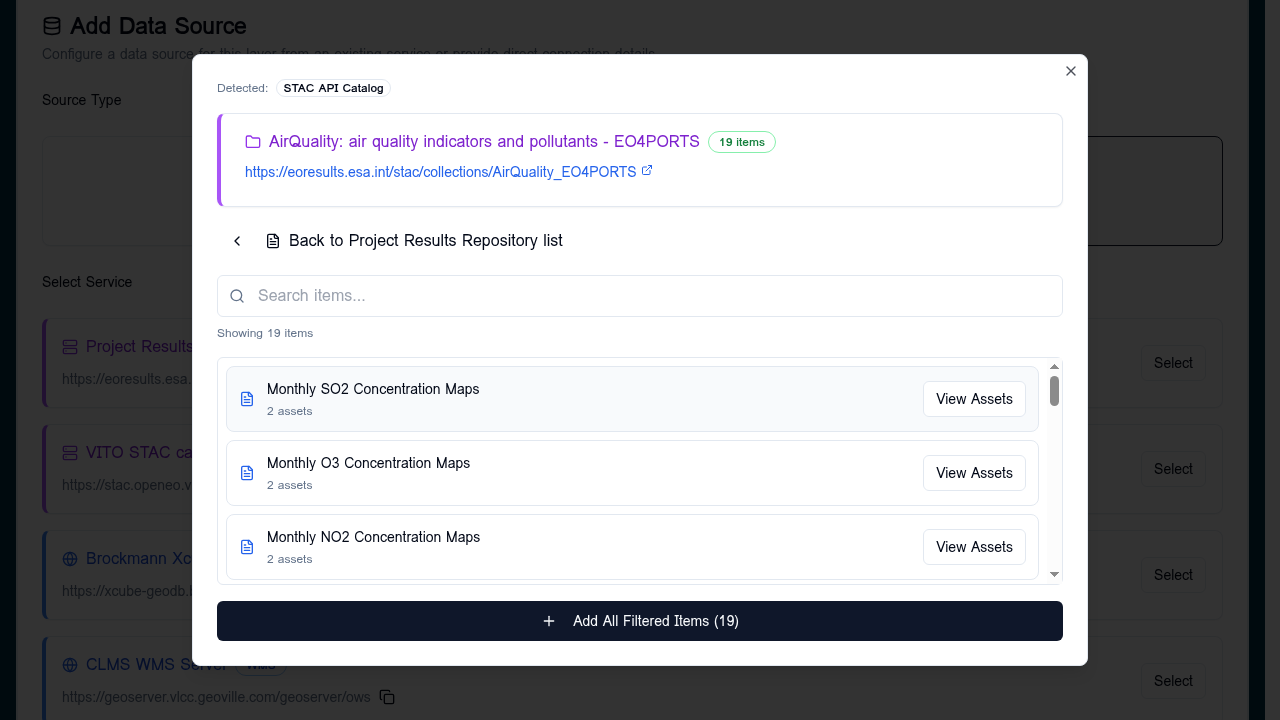
You can search items, then either:
- Click View Assets on a single item to see its assets, or
- Click Add All Filtered Items (n) to add every visible item as a separate data source — useful for time-series.
Pick an asset
Items contain one or more assets (the actual file URLs). The asset view lists them with format badges, MIME type, and size.
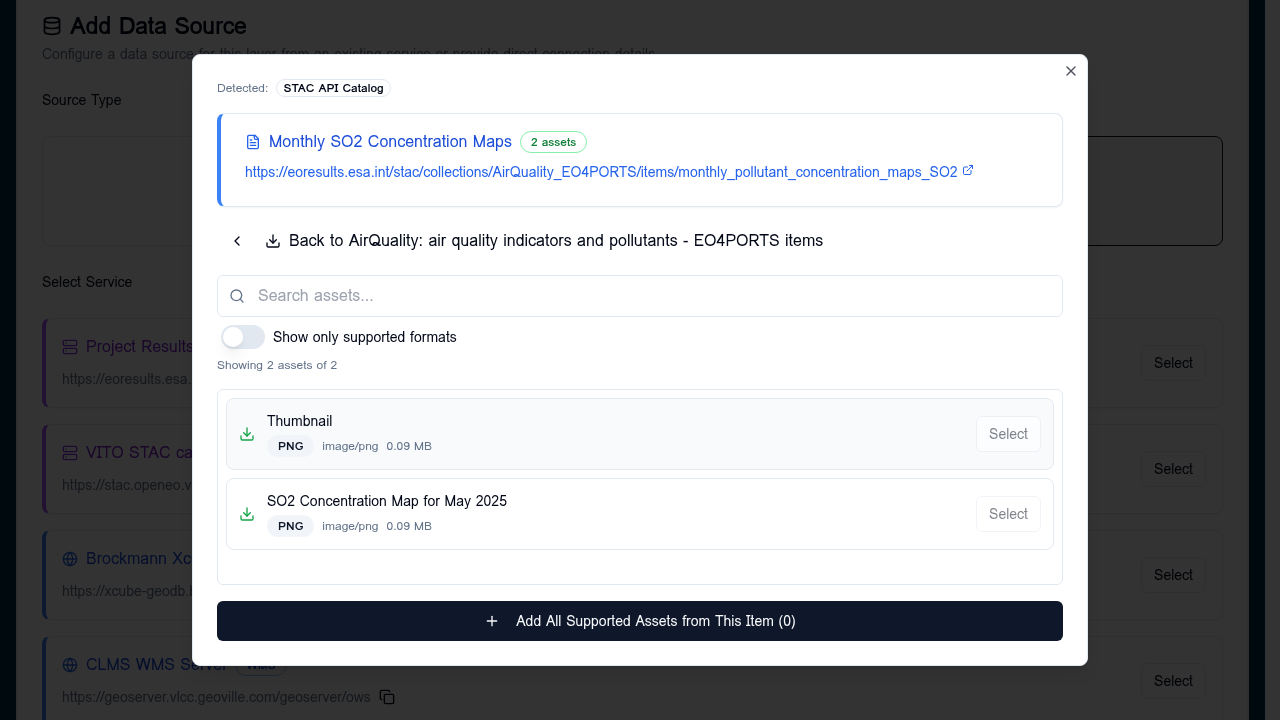
- Toggle Show only supported formats to hide previews and metadata files.
- Click Select on any asset to populate the data source form.
Format detection
Each asset's format is detected from the actual MIME type returned by HEAD when possible, falling back to the extension. Supported formats match the rest of the builder: COG, GeoJSON, FlatGeoBuf, CSV; PNG/JPEG appear as previews only.
Direct STAC links
You can paste a direct STAC item URL or an openEO results URL into the browser's URL field at any level — the builder figures out where in the catalogue tree to open. See the STAC direct links reference for the supported shapes.
Tips
- Catalogues with thousands of collections are paginated server-side. Use the search field rather than scrolling.
- If a collection's items take a long time to list, the underlying STAC API may be rate-limiting. Filter by date upstream where possible.
- Signed URLs are common in commercial STAC catalogues; the builder stores the base URL and re-signs at view time when supported.